
Introduction
AI music tools promise that anyone can make music — without an instrument, without a studio, and without years of practice. MozartAI goes a step further than a plain song generator: the idea is to turn a single prompt into a complete song that you can then edit, master, turn into a music video, and release.
This guide is written for complete beginners. It walks you through how the platform is structured, how to create your first song, and what each feature is best used for. No prior music-production knowledge is required.
Table of Contents
- What is MozartAI?
- Creating an account and signing in
- The home screen
- Vibe: turning an idea into a song
- Starting a project
- Studio: full control in the DAW
- Personas: training your own sound
- Library: managing your songs
- Discover and community
- Profile and publishing
- Credits, plans and pricing
- Practical tips
- Pros and cons
- FAQ
- Conclusion
1. What is MozartAI?
MozartAI is a browser-based AI platform for music creation (there's also an iOS app). The core idea: "Make a Song You'll Love" — turn a description, a melody in your head, or a few lines of lyrics into a full track.
The platform is built around three pillars:
- Vibe – the simple, prompt-based path: describe what you want and MozartAI generates the rest.
- Studio – a full music-production environment (DAW) with tracks, MIDI, a mixer and effects for more control.
- Personas – custom AI models trained on a voice or style that you own.
Usage runs on a credit system. You get up to 10 songs for free to start.
2. Creating an account and signing in
Go to mozartai.com and create an account. You can sign up with a phone number (SMS code), Google, or Apple. After signing up, the free plan immediately gives you up to 10 songs plus access to Mozart Studio.
Note: The actual workspace lives at mozartai.com/app/home and is only reachable after logging in.
3. The home screen
After logging in you land on the Home view. It gives you an overview of current trends, top artists and new features. "Start new Session" kicks off a fresh creation.
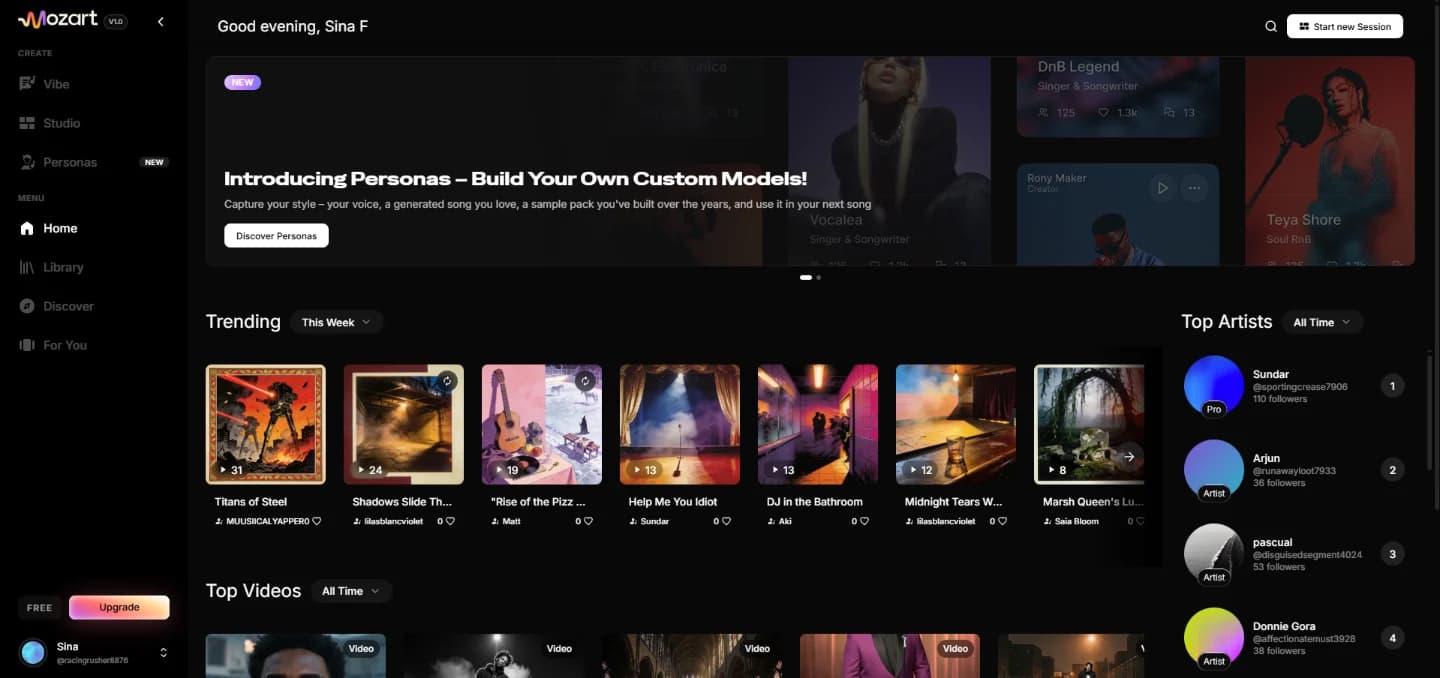
On the left is the navigation bar you'll use throughout the app:
VibeandStudio– the two creation modesPersonas– custom sound modelsHome,Library,Discover,For You– overview, your content and community
4. Vibe: turning an idea into a song
Vibe is the fastest route to your first song and the best starting point for beginners. You describe the style you want, optionally add your own lyrics — and MozartAI generates the track.
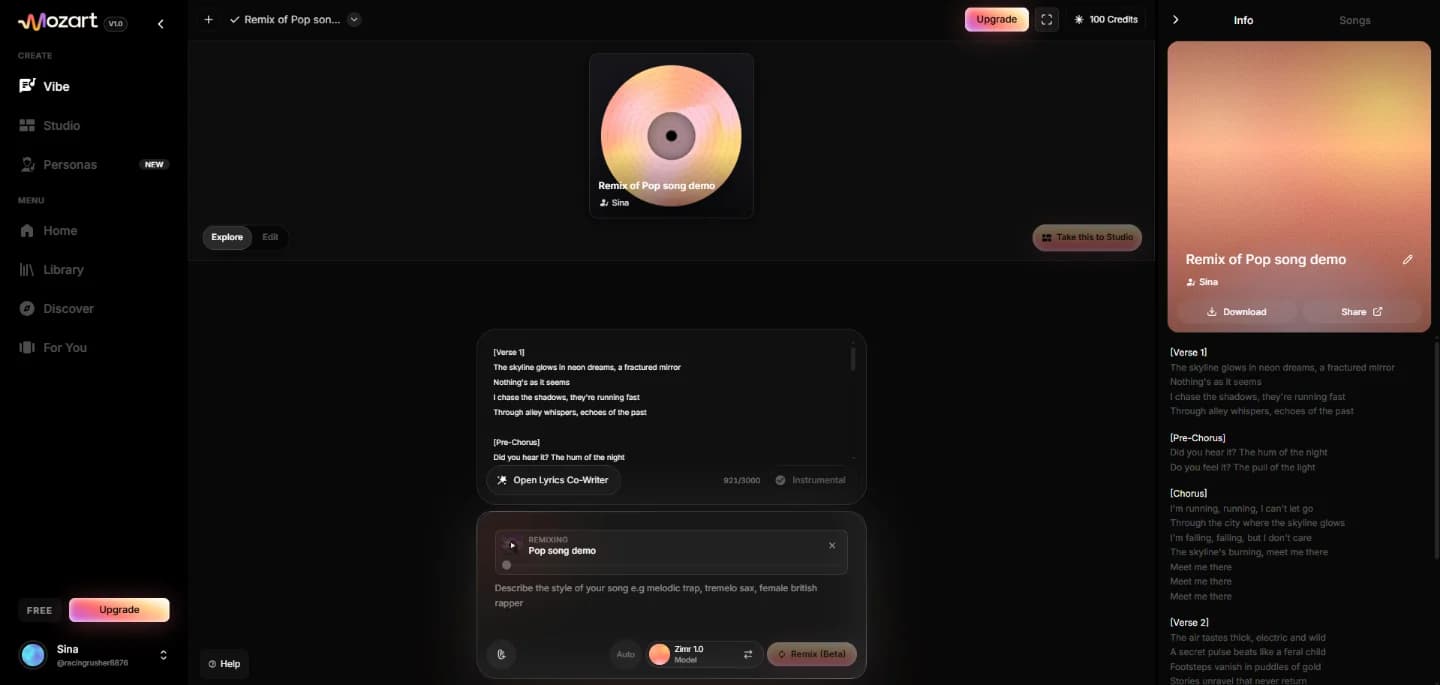
The key elements:
- Style description – e.g. "melodic trap, tremolo sax, female british rapper." The more specific, the more targeted the result.
- Lyrics editor / Open Lyrics Co-Writer – paste your own lyrics or have the AI co-write them. The Instrumental toggle creates songs without vocals.
- Model selection – the AI model in use (e.g. Zimr 1.0) plus an optional Persona.
- Generate / Remix – starts the generation. "Take this to Studio" moves the song into the Studio for fine-tuning.
On the right, the Info panel shows your song's lyrics along with Download and Share buttons.
5. Starting a project
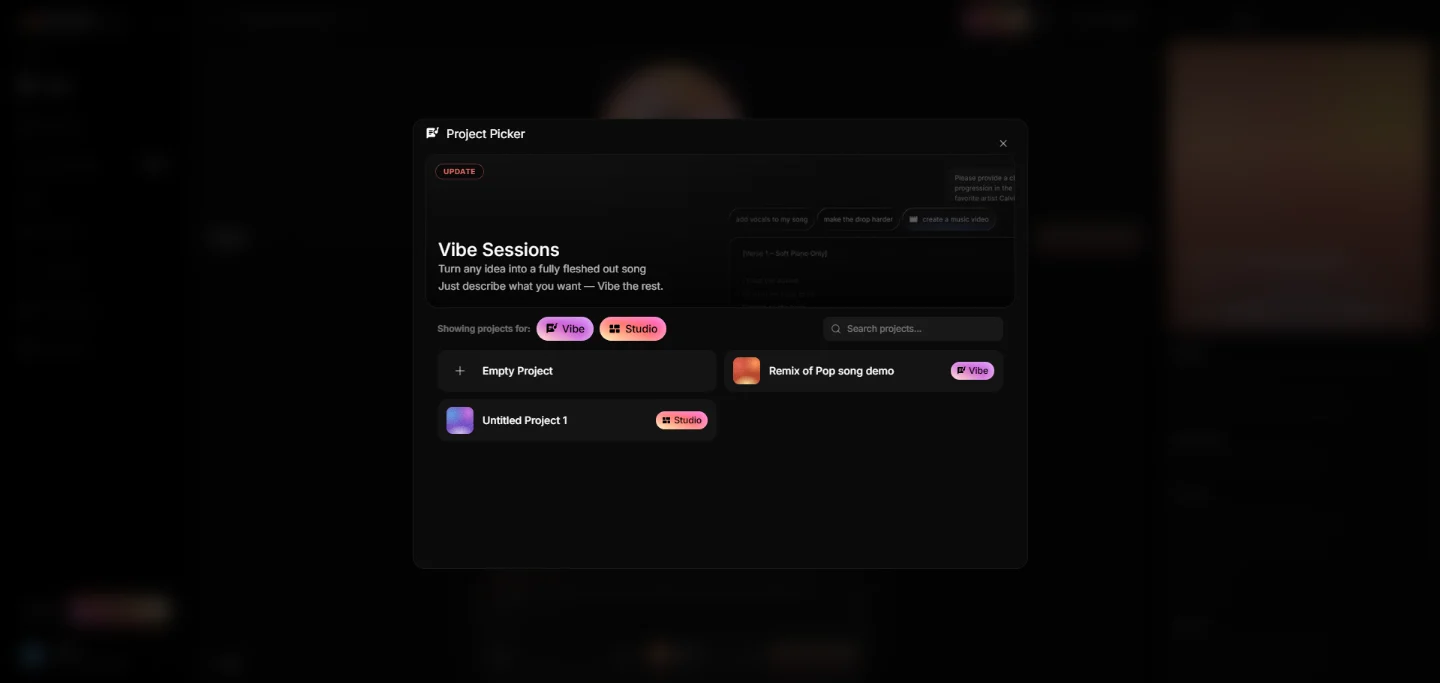
The Project Picker lets you choose whether to work in the simple Vibe mode or the professional Studio mode. You can start an empty project or continue an existing one.
6. Studio: full control in the DAW
If you want more than "prompt in, song out," use the Studio — a full production environment (digital audio workstation). Here you work with a timeline, multiple tracks (audio and MIDI), BPM and key.
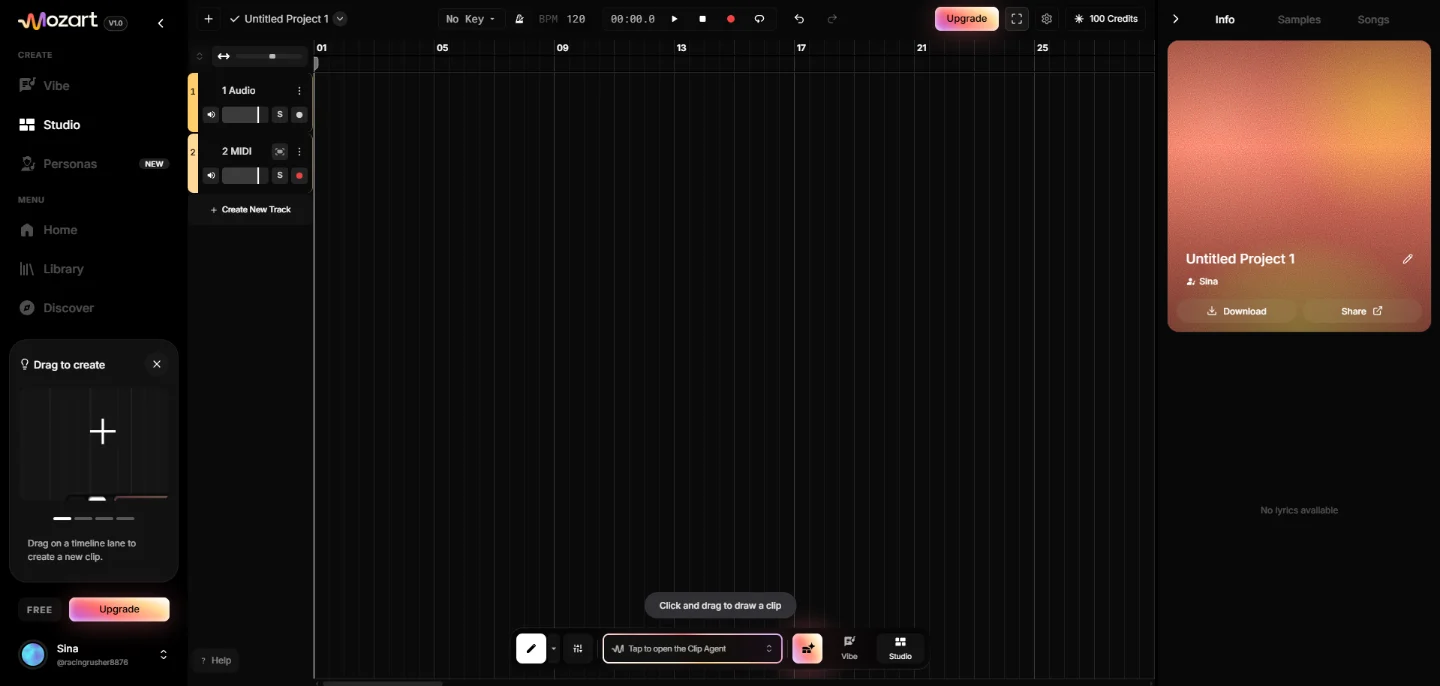
What the Studio lets you do:
- Create clips directly on the timeline with "Click and drag to draw a clip"
- Mute, solo and record tracks
- Use the Clip Agent to generate specific sections
- Split stems and work with the audio-to-MIDI model
The Studio is for users who really want to shape their song — it's the step after the quick draft in Vibe.
7. Personas: training your own sound
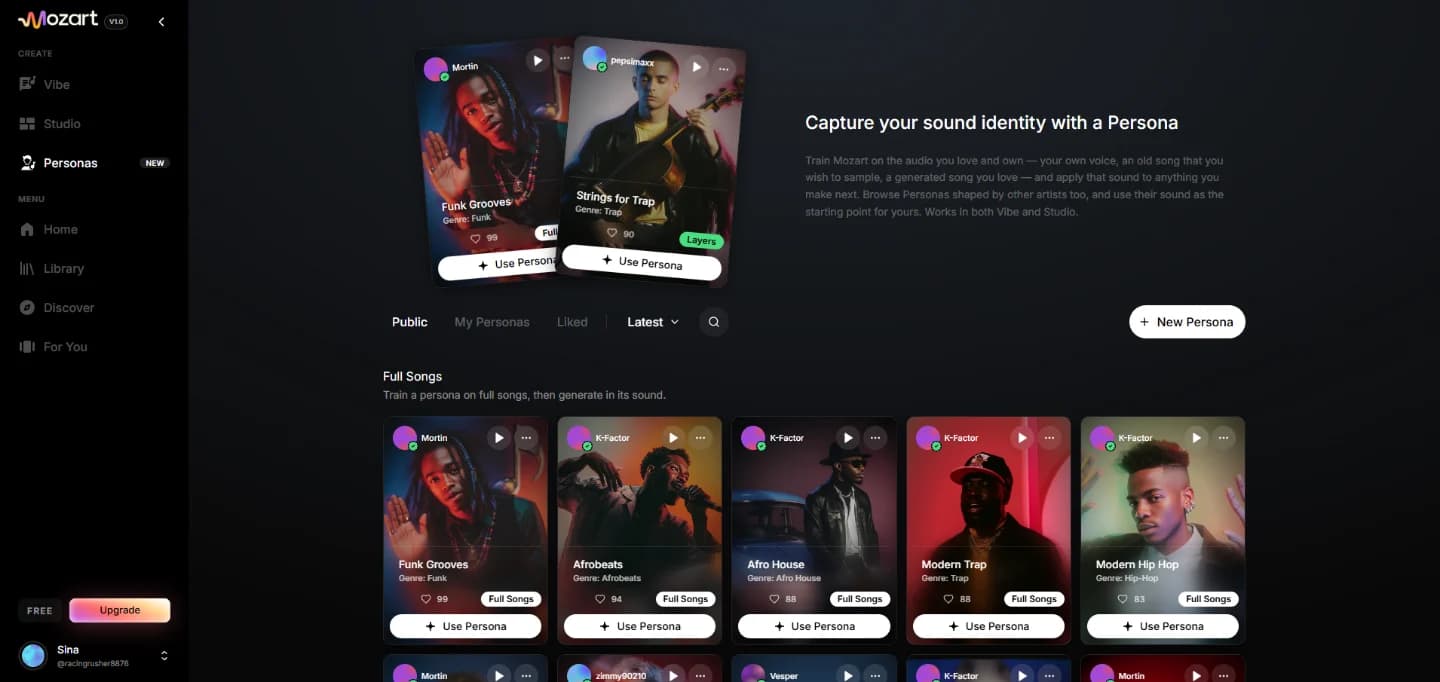
Personas are one of MozartAI's strongest features. You train a custom model on audio you own — your own voice, a song you're allowed to sample, or a generated track you love — and apply that sound to everything you make next. Personas work in both Vibe and Studio.
You can:
- create your own model via "New Persona"
- browse public personas from other artists (
Public,My Personas,Liked) - apply a persona as a starting point with "Use Persona"
8. Library: managing your songs
The Library collects everything you've made. The Songs, Drafts, Albums, Videos and Personas tabs keep things organized, and search helps you find tracks again.
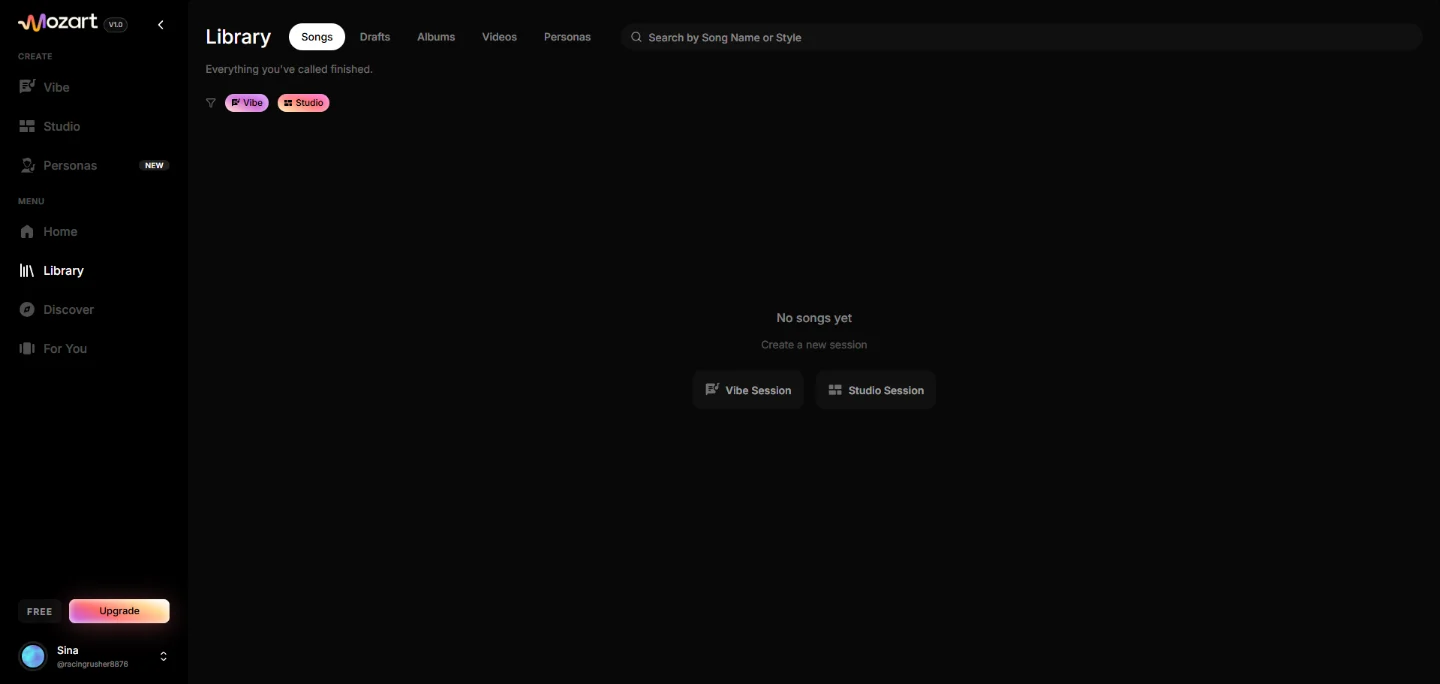
Until you've created anything, the Library offers "Vibe Session" and "Studio Session" as direct starting points.
9. Discover and community
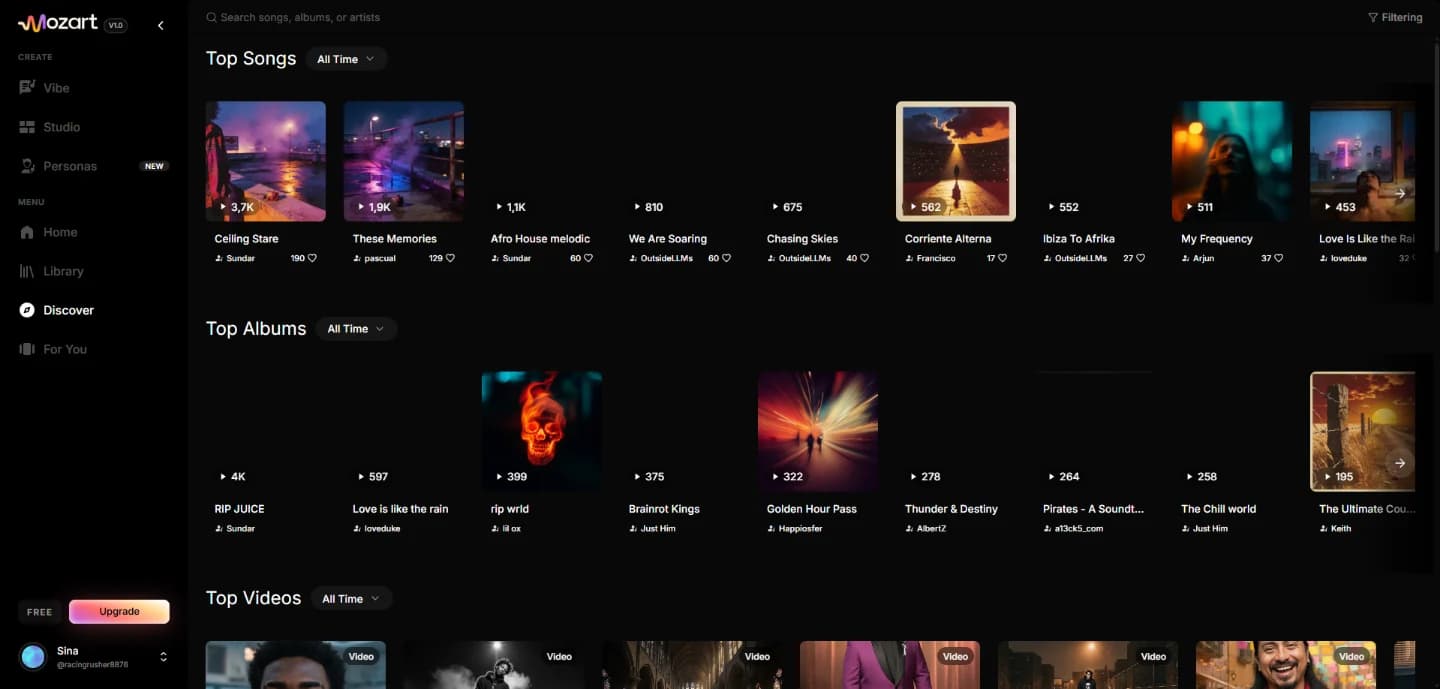
The Discover section surfaces the community's Top Songs, Top Albums and Top Videos. It's ideal for discovering styles and grounding your own prompts in successful examples. The For You feed plays tracks in a vertical format.
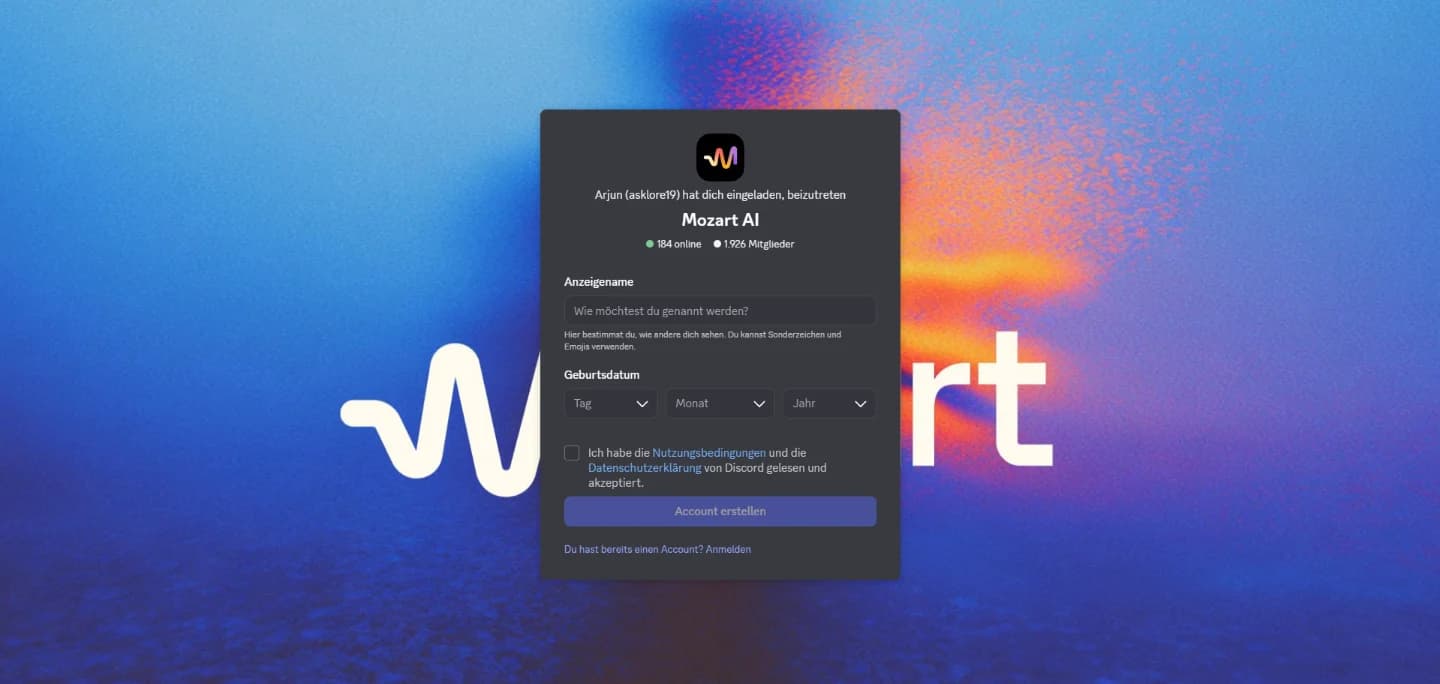
There's also an active Discord community where you can get feedback, ask questions and join contests.
10. Profile and publishing
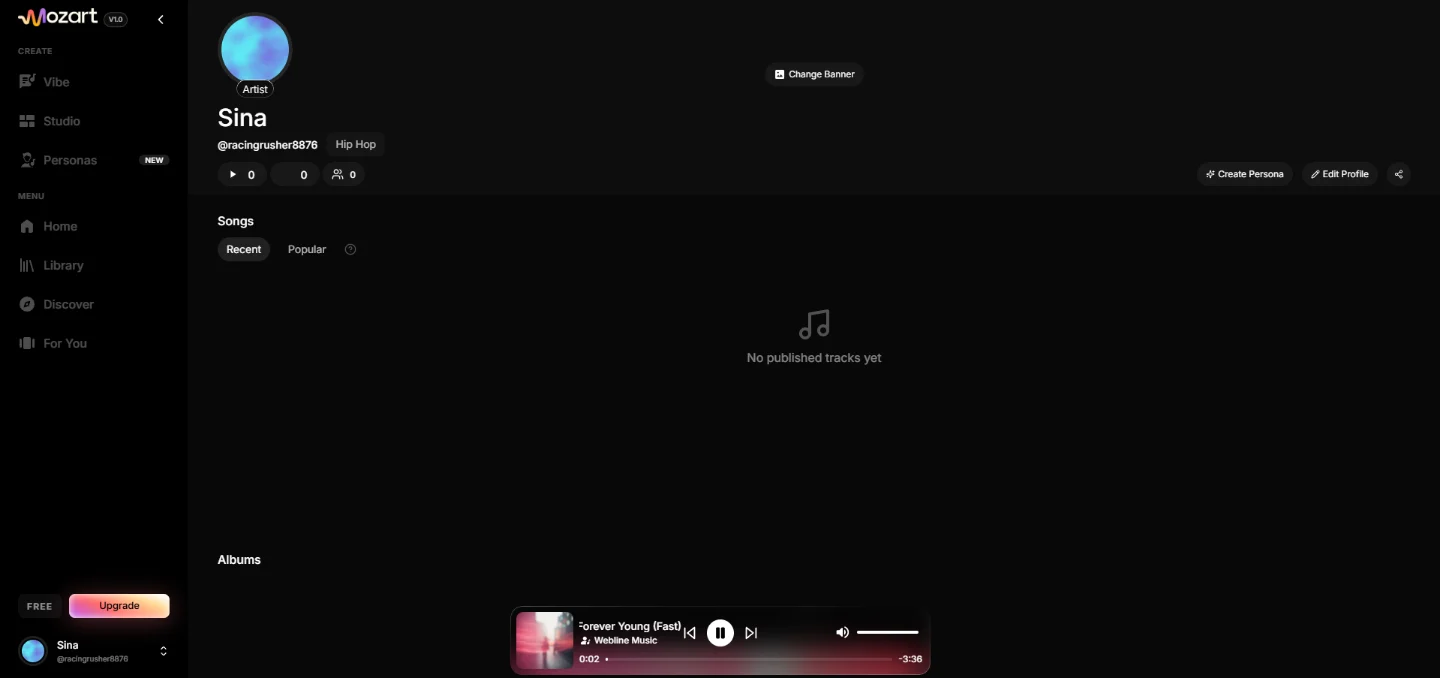
Your Profile is your artist page. Here you publish tracks, create albums, build personas and customize your banner. Other users can follow you and listen to your songs.
11. Credits, plans and pricing
MozartAI runs on credits and tiered plans. The free plan is great for trying things out; for regular use a subscription pays off.
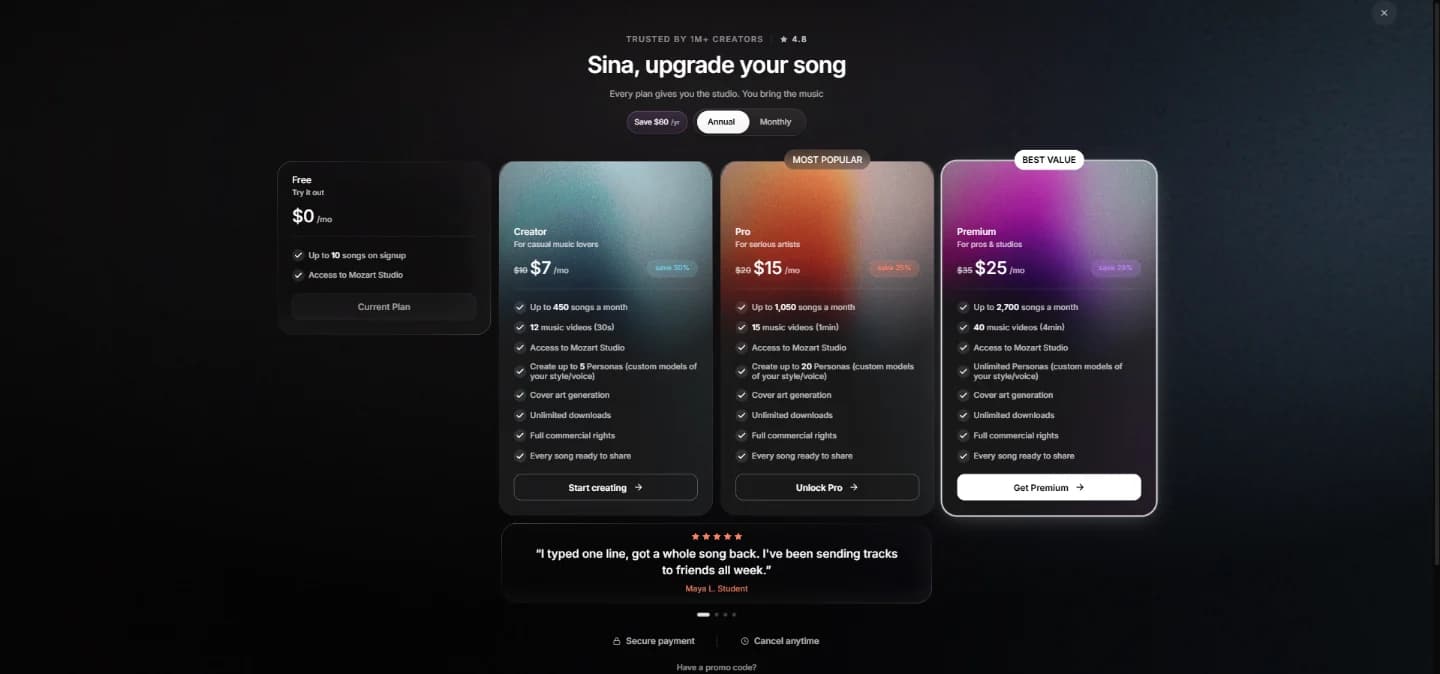
| Plan | Price (annual) | Songs/month | Highlights |
|---|---|---|---|
| Free | $0 | 10 (one-time) | Access to Mozart Studio |
| Creator | $7/mo | up to 450 | 5 Personas, 12 music videos (30s), full commercial rights |
| Pro | $15/mo | up to 1,050 | 20 Personas, 15 music videos (1 min) |
| Premium | $25/mo | up to 2,700 | unlimited Personas, 40 music videos (4 min) |
All paid plans include the full studio, unlimited studio tracks, stem splitting and full commercial rights to your songs.
12. Practical tips
- Precise prompts beat short prompts. Be specific about genre, mood, instruments and vocal style.
- Vibe first, Studio second. Generate a quick draft in Vibe, then use "Take this to Studio" for detailed work.
- Use the Instrumental toggle when you need the song as a beat or background music.
- Create Personas early if you want a recognizable, signature sound.
- Learn from the community: check the Discover feed to see which styles are working right now.
13. Pros and cons
—Pros
- Very low barrier to entry — first song in minutes
- A complete workflow: idea → song → studio → video → release
- Personas for a recognizable, signature sound
- Full commercial rights on the paid plans
—Cons
- Login required — no trying it out without an account
- The credit system can add up with heavy use
- The Studio has a learning curve once you go deeper
14. FAQ
Do I need musical experience? No. For Vibe, a written description is enough. The Studio adds depth but is optional.
Can I use my songs commercially? On the paid plans you get full commercial rights according to the provider. Check the terms of service for your specific case.
What exactly are Personas? Custom AI models trained on audio you own (e.g. your voice) to produce a consistent sound.
Is there an app? Yes, MozartAI is also available as an iOS app.
Conclusion
MozartAI is more than a simple song generator: it pairs a beginner-friendly entry point (Vibe) with a serious production environment (Studio) and a standout feature — Personas. For anyone who wants to get from idea to a finished, release-ready song quickly, it's a powerful tool.
The best way to understand it is to try it: create your first Vibe song on the free plan and work your way up from there.
Want to go from generic tracks to releasable songs? Mozart AI — The Complete Guide: Make, Edit & Sell AI Music is the full playbook: how to prompt MozartAI like a producer, a repeatable formula for song prompts that don't come out generic, how to finish tracks with stems and the Studio, and five realistic ways to actually make money from the music you create.